CMSV6 API and Video Integration: What a Third-Party Platform Can Use
Integration Guide
A third-party platform can use CMSV6 in four ways: the HTTP API for data and alarms, stream addresses for live video, a web player plugin for browsers, and iOS and Android SDKs for apps. One limit matters early: the RTSP, HTTP-FLV, HLS and RTMP live streams support H.264 only. H.265 video needs the web player plugin.
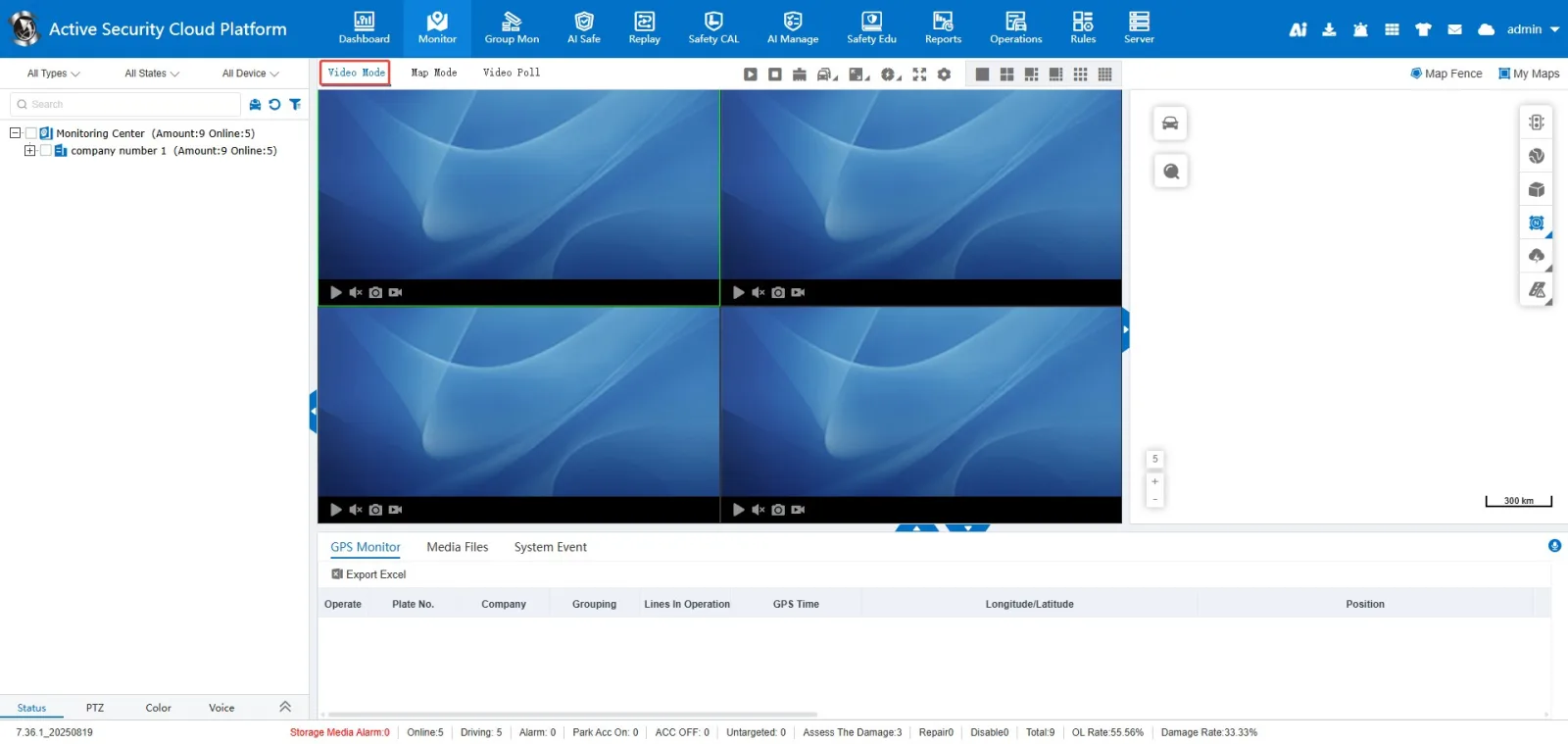
How devices reach CMSV6
Vehicle devices connect to CMSV6 over JT/T 808 and JT/T 1078. JT/T 808 carries position and alarm data. JT/T 1078 carries video. Your platform does not talk to the device. It talks to CMSV6, which then exposes the data. The checklist in Which Devices Can Connect to CMSV6 explains how to confirm that a device model can connect. Model-by-model interfaces are on each product page and in your quotation.
What the HTTP API covers
You sign in with a CMSV6 account and receive a session number. Every other call uses it. The session is valid for 4 hours and stays valid while calls continue. A second sign-in with the same account does not end the first session. The session carries the role and the vehicle permissions of the account, so an API user only sees the devices that account is allowed to see.
| Area | What you can do | Examples from the documentation |
|---|---|---|
| Devices and vehicles | Read device information, online status and live status; add, edit or delete devices | Get device information, Get device online status, Get device real-time status, Add device |
| Alarms | Read live alarms, search safety alarms, read and download alarm attachments, mark alarms as handled, manage linked-alarm rules | Get device real-time alarms, Safety alarm query, Alarm attachment query, Alarm attachment download, Alarm handling |
| Tracks and positions | Read historical tracks and geofence information | Get device history track, Get device geofence information |
| Control and maintenance | Send device control commands and manage upgrade tasks | Device control, Get current upgrade task, Set current upgrade task |
| Permissions | Read, add and remove user-to-device authorization | Get user device authorization, Add user device authorization |
Alarm queries can return coordinates in WGS84 (the default), Google (GCJ-02) or Baidu (BD09) format, chosen by a request parameter. Alarm searches take a start and end time and cover up to 90 days per request. The full reference is in the HTTP API section of the help center.
Live video: stream addresses
CMSV6 returns a live video address that another player or platform can open. The address is built from the session number, the device number, the channel (counted from 0) and the stream type (0 for the main stream, 1 for the sub stream).
| Method | Format | Codec support | Note |
|---|---|---|---|
| RTSP | rtsp:// address | H.264. H.265 not supported | Live video request with session, device number, channel and stream |
| HTTP-FLV | http:// or https:// address | H.264. H.265 not supported | Request type 1 for live video, 2 for audio monitoring |
| HLS | .m3u8 address over http or https | H.264. H.265 not supported | Can be played in a video element that supports HLS |
| RTMP | rtmp:// address | H.264. H.265 not supported | Request type 1 for live video, 2 for audio monitoring |
If your cameras send H.265, use the web player plugin below for live video in a browser. The stream addresses above support H.264 only. Details are in the Video protocol integration section.
Embedding video and maps in your own web or mobile app
- Web player plugin. A JavaScript file and a WebAssembly decoder add live video, playback, two-way intercom and broadcast to PC and mobile browsers. It supports H.264 and H.265. The decoder file must sit in the web root of the page, otherwise the video can stay black. A Vue integration guide is included. See Web video integration.
- Ready-made web pages. The server provides pages for live video and remote playback of a single vehicle. You pass parameters in the page address, which is the fastest route when you only need one vehicle on screen.
- Web page integration. Password-free sign-in, a real-time location page and a track playback page can be opened from your own system. See Web page integration.
- Mobile SDK. Native iOS and Android SDKs cover real-time audio and video, two-way intercom, remote playback and local device search. See Mobile SDK.
Which route to use
| If you need to | Typical route |
|---|---|
| Pull alarms and events into your own platform | HTTP API alarm queries and alarm attachments |
| Show live video in a browser, including H.265 cameras | Web player plugin |
| Open a live stream in another player or video platform | RTSP, HTTP-FLV, HLS or RTMP address, for H.264 video |
| Show one vehicle quickly inside an existing page | Ready-made live video or playback page with parameters |
| Add video to an iOS or Android app | Mobile SDK |
| Connect a device or ECU that you build yourself | JT/T 808 and JT/T 1078, or the CMSV6 private protocol (see the next section) |
For what the platform does on screen once the data arrives, see live video monitoring, track and video playback and alarm rules and handling.
If you build your own device or ECU
The CMSV6 documentation explains how a device reports to the platform. It does not describe running AlwayCare driver monitoring software on a customer's own chip. That limit is covered at the end of this section.
Two ways to connect. A device can connect over the standard JT/T 808 and JT/T 1078 protocols, or through the CMSV6 private protocol, which has its own device-side network library and documentation.
| Route | Protocols | What the documentation covers |
|---|---|---|
| Standard protocols | JT/T 808-2011, JT/T 808-2019 and JT/T 1078-2016 | Any device that follows these protocols can connect. The platform gives the device a server address and port, and the device gives the platform its device ID. |
| CMSV6 private protocol (TTX) | CMSV6 private protocol over the device-side network library | Alarm reporting with pictures and video, H.264 and H.265 video formats, audio formats, remote upgrade, parameter configuration, device log download, people counting and time synchronization. |
What a device needs in order to connect
- Three settings on the device: the public IP address or domain of the server, the report port, and the device ID. The platform operator supplies the address and port. In the private-protocol device menus described in the documentation, the default port is 6608; use the port of your own deployment.
- The device ID must match the platform. JT/T devices normally use a 12-digit device number. If the number is shorter, the platform adds leading zeros to make 12 digits. The device ID is the only thing the platform uses to recognize a device.
- On the platform, add the vehicle. Use Quick Add Vehicle and enter the device ID, plate number, terminal type and company. You can also open Unregistered Devices. A device that appears there has already connected to the platform, and you can add it to a vehicle from that list.
- Check the network. A device on a restricted or directed network can only report to one fixed server. Confirm that the network allows the device to reach your platform.
Reporting driver-monitoring and ADAS alarms over JT/T 808 and JT/T 1078
When a device raises an active-safety alarm (for example a driver fatigue or forward-collision alert) it can attach pictures or video. The platform asks for the attachments and the device uploads them to an attachment server. The order is:
- The device sends location data (message 0200) that contains the active-safety alarm and the number of attachments.
- The platform gateway replies with a general response and sends message 9208, which carries the address and port of the attachment server. The device answers with a general response. The attachment server port must be reachable from the device.
- The device connects to the attachment server and sends message 1210. The server sends a general response.
- The device sends message 1211 together with the attachment data stream. The server does not reply to this message.
- When the file is complete, the device sends message 1212 and the server replies with 9212.
- The device then uploads the next attachment, starting again from the connection step.
If alarms arrive without pictures or video, the documentation suggests checking the gateway log for the sequence 0200 from the device, 8001 from the platform, 9208 from the platform and 0001 from the device, and then checking that the file reached the storage server. A log parsing tool for 808 and 1078 messages is provided.
Alarm types and protocol variants. The platform lists the active-safety protocol types it supports in the device information form, under Operations, Device information, Add, Protocol type. The documentation includes alarm ID lists for several Chinese provincial and local active-safety standards (Jiangsu, Sichuan, Guangxi, Jilin, Jiangxi, Shaanxi, Shanghai, Yingkou, Chongqing and Zhejiang). Once an active-safety protocol type is selected for a vehicle, the platform can send ADAS and DSM alarm parameters to the device from the Active Safety Settings menu. The alarm types that the platform shows are configurable, and types that are not ticked are not parsed.
Extra alarms on JT/T 808. Based on a Sichuan group standard, the platform supports user-defined extensions that report collision, rollover, start, stop, SOS and I/O alarms:
| Alarm code | Meaning |
|---|---|
| 0x16 | Collision alarm |
| 0x17 | Rollover alarm |
| 0x18 | Start |
| 0x19 | Stop |
| 0x1A | SOS alarm |
| 0x1C to 0x27 | I/O alarms 1 to 12 (0x1C is I/O 1, 0x27 is I/O 12) |
Video recording upload (JT/T 1078 only). A user can ask the platform to fetch a recording from the device by FTP. The platform sends message 9206, the device replies with a general response and starts uploading, and reports message 1206 when the upload is complete. This works only for JT/T 1078 devices, and the FTP server must be reachable from the internet.
Private protocol: what a device implements
For devices that use the private protocol, the documentation gives device-side code examples for these tasks:
- Alarm with pictures or video. The device first reports the alarm and keeps the alarm number. It then uploads each file with that alarm number. File types are JPEG pictures, recordings and audio. A video or audio file needs its length. A picture has a length of 0.
- Video format. The device declares its video encoder when it starts. Different channels may use different formats, for example H.264 on one channel and H.265 on another. For H.265, each I-frame must be preceded by the VPS, SPS and PPS.
- Remote upgrade. The client uploads an upgrade file to the server and the server sends it to the device. Only online devices can be upgraded. The device checks the version, receives and verifies the file, then upgrades after a restart. The documentation recommends that devices can also upgrade without a storage card.
- Parameter settings. The documentation recommends using the web settings page provided by the platform, which the PC client and the web client both load.
- Other documented topics. Audio format integration, device log download, passenger counting data, device time synchronization and devices that upload media files on their own.
What is not in the documentation. There is no public description of running AlwayCare driver monitoring software on a customer's own ECU or SoC. The documentation does not list supported chips or operating systems, memory, flash or processor requirements, camera combinations or an evaluation process. If you plan to build the detection into your own hardware, send your engineers' questions through the inquiry form with the SoC, operating system, camera sensors, memory and flash, and the functions you need. Our engineers will assess the request.
What to confirm before you integrate
- Check that your device model and firmware connect over JT/T 808 and JT/T 1078 (see the checklist above).
- Find out whether each camera sends H.264 or H.265, and choose the route that supports it.
- List the channels you need and whether you need the main stream or the sub stream.
- Decide where CMSV6 runs. Platform authorization is listed in the standard components, but the platform software cost is not included in a quotation. Dedicated fleet server deployment, custom API integration and self-hosted platform licenses are available after a technical discussion with our engineers.
- If you build your own device, choose the standard protocols or the private protocol, set the server address, port and device ID, and test the alarm and attachment flow with the gateway log.
- Use the address and account of your own deployment. The documentation examples use demo server addresses and sample accounts.
If you are choosing between connecting a camera to your platform directly and using CMSV6, Integrating AI Dashcams with Your Existing Telematics Platform compares the integration paths. For wider data-connection risks, read Fleet Data Silos.
Where to read the full documentation
The CMSV6 help center at docs.alwaycare.com is available in English and Chinese. Start with the HTTP API, Video protocol integration and Web video integration sections. The platform itself is described on the CMSV6 platform page.
Questions about CMSV6 integration
Does CMSV6 have an API?
Yes. CMSV6 has an HTTP API for devices, alarms, alarm attachments, tracks, device control and user authorization. You sign in with an account to get a session number that is valid for 4 hours.
Can another platform pull live video from CMSV6?
Yes. CMSV6 returns live video addresses in RTSP, HTTP-FLV, HLS and RTMP formats. These support H.264.
Does CMSV6 support H.265?
The web player plugin supports H.264 and H.265. The RTSP, HTTP-FLV, HLS and RTMP live streams support H.264 only, and H.265 is not supported on them.
Is there an SDK for mobile apps?
Yes. There are native iOS and Android SDKs for real-time audio and video, two-way intercom, remote playback and local device search.
Which devices can connect to CMSV6?
Devices that connect over JT/T 808 and JT/T 1078. Confirm the exact model and firmware on the product page or with our engineers.
Can I connect a device that I build myself?
Yes, if it follows JT/T 808-2011, JT/T 808-2019 or JT/T 1078-2016, or if it implements the CMSV6 private protocol. The device needs the server address, the report port and a device ID that matches the platform.
Can AlwayCare driver monitoring software run on my own ECU or SoC?
This is not described in the public documentation. Send your SoC, operating system, camera sensors, memory and flash, and the functions you need through the inquiry form, and our engineers will assess it.
Is custom API integration included in a quotation?
Custom API integration is available after a technical discussion with our engineers. Platform software cost is not included in a hardware quotation.
Send your platform name, the devices you plan to connect and the integration route you prefer through the inquiry form, and our engineers will confirm what applies.
For fleet management, tracking and video platform options in one place, see the fleet management solution.