Fleet Alarm Rules and Alarm Handling in CMSV6: From Alert to Closed Event
Fleet Safety Platform Guide
Alarm management in a fleet platform has two jobs: decide which alarms matter, and make sure someone deals with each one. In AlwayCare CMSV6 the first job is done by alarm rules, which an administrator assigns to vehicles. The second is done in the alarm center, where staff view, handle and close events. This guide covers the main rule types, the alarm center options and a simple way to start.
Rules and the alarm center
| Part | Who uses it | What it controls |
|---|---|---|
| Alarm rules | Administrator | Which alarms trigger an action, for which vehicles, in which time range |
| Alarm center | Monitoring staff | How alarms are displayed, handled and cleared for each login account |
How rules reach vehicles
- A rule only acts on the vehicles assigned to it. Unassigned vehicles are not affected, unless the rule is set to match all vehicles of the company.
- Assign by company or fleet, by vehicle type, or by plate or device number. You can assign one vehicle, a selection or all filtered vehicles.
- Detail view is read-only. Edit changes a rule. Delete makes the rule invalid, but alarms it already generated are kept.
- To check what a vehicle has, search its plate in the rule assignment by vehicle page.
See Basic operations of platform rules and Associate Rules by Vehicle.
The main alarm rule types
| Rule | What it does | Key settings |
|---|---|---|
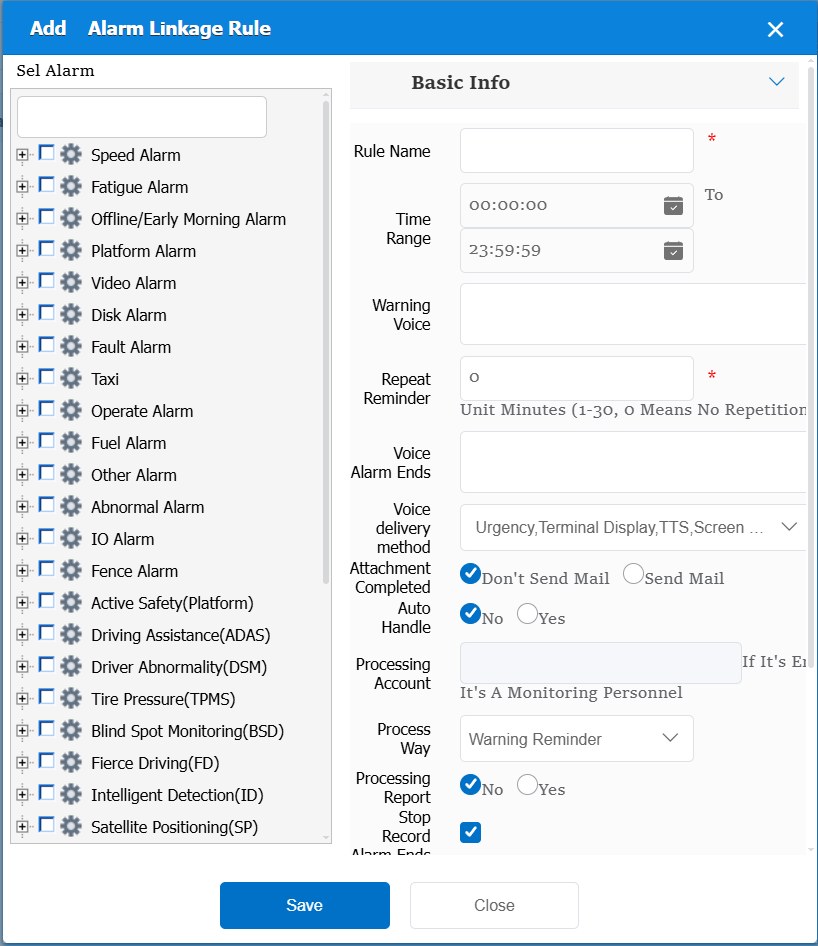
| Alarm linkage | Runs actions when selected alarm types fire: voice messages, repeat reminders, automatic processing, attachments and mail | Time range, voice at alarm start and end, repeat reminder, automatic processing with a processing account, photo and video, stop recording when the alarm ends |
| Alarm processing reminder | Reminds staff when an alarm has not been handled in time. Can change the reminder level by alarm type and level | Maximum processing time, time range. Several rules are judged independently, so one alarm can be reminded more than once |
| Frequent alarm | Raises a platform frequent alarm when the same alarm repeats on one vehicle | Alarm level (frequent level 1 or 2), time or mileage window, number of similar alarms |
| Secondary alarm | Raises a platform secondary alarm when a set number of alarms occur within a set time | Alarm duration in seconds and alarm count. Example in the documentation: 10 alarms in 60 seconds |
| Alarm shielding | Stops chosen alarm types from being prompted. They stay in the reports | Area: none, inside an area or outside an area |
| AI false alarm analysis | Lets an AI service re-check alarms and process false ones automatically. Supports physiological fatigue alarms only | Algorithm vendor and API key in the AI configuration, a processing account |
Each rule has a rule name, a time range, a match-all-vehicles option and a global-share option that makes it visible to all companies on the platform. See Alarm linkage rules, Alarm processing reminder, Frequent alarm rules, Secondary alarm, Alarm Shielding and AI alarm false alarm analysis rules.
Shielding hides the prompt, not the record. The alarm can still be found in the reports.
The alarm center
- The center shows the alarms for the account that is logged in. A page refresh clears the list.
- To catch alarms nobody handled in time, turn on auto load for unprocessed alarms, turn on the automatic pop-up, or set up automatic processing in an alarm linkage rule.
- Handled alarms can be cleared from the real-time list automatically. You can set how often alarms are fetched and how many recent alarms the center shows.
- Older alarms are handled in Active Security Alarm Processing under Safety Management, or in the alarm detail report for common alarms.
If several people handle the same alarm, their status is shared. With the alarm repeat processing option ticked, the last result submitted counts. If it is not ticked, the first one counts. See Alarm Center Introduction and Alarm processing center.
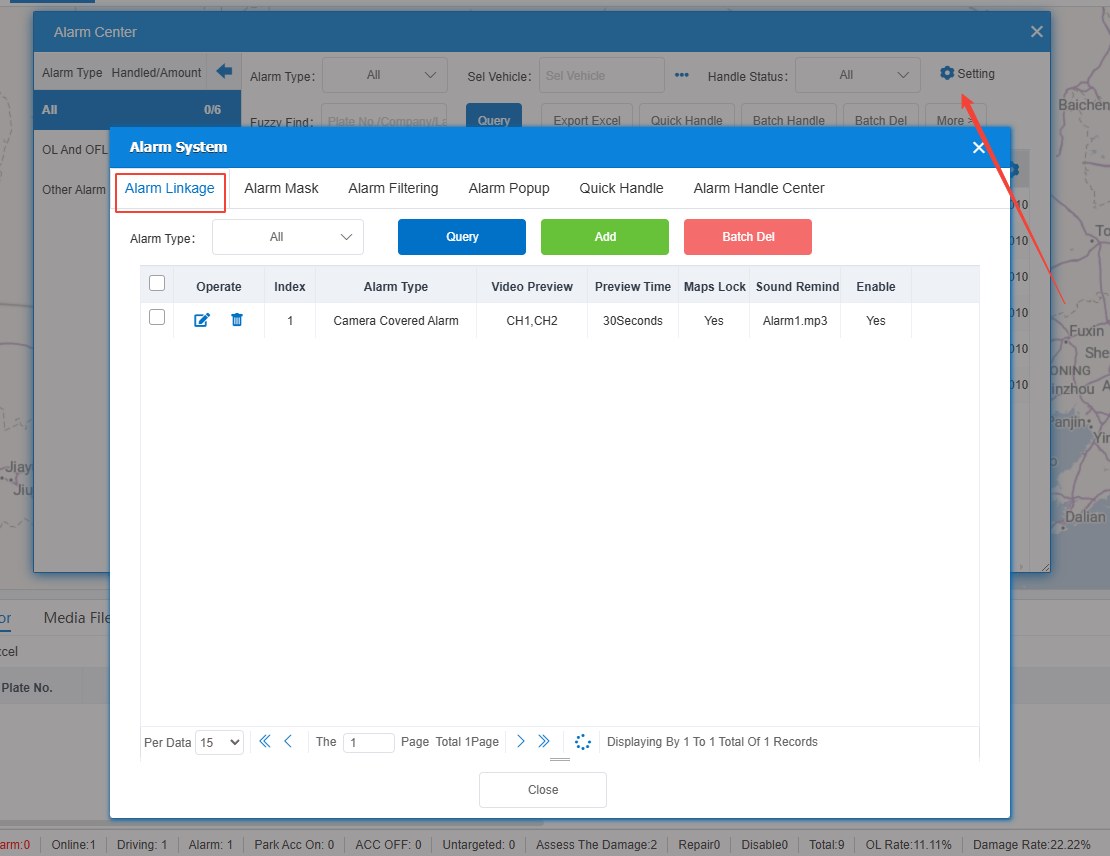
Alarm system settings
| Tab | What you set |
|---|---|
| Alarm linkage | What happens on screen when an alarm fires: preview channels, preview time of 30 to 1800 seconds (0 stops at the end of the alarm), sound reminder, reading out the alarm name, locking the map on the alarm and the active time period |
| Alarm mask | Hide chosen alarms for vehicles or companies |
| Alarm popup | Pick the alarm types that open a pop-up window |
| Quick handle | Preset the message, message type and handling method for an alarm type, so one click completes handling |
| Alarm handle center | Auto load, automatic pop-up, auto clear and fetch interval |
Handle alarms one by one, in a batch or with quick handle. The quick handle message can go to the terminal display, the screen or TTS. See single alarm processing, batch processing, quick handling and alarm linkage settings.
A simple way to start
- List the five or six alarm types you really act on, for example fatigue, phone use, collision and offline.
- Create one linkage rule for them with a voice message to the driver and a time range that matches the shift.
- Assign it to a pilot group of vehicles, not the whole fleet.
- Add a processing reminder with a maximum handling time so nothing stays open.
- After a week, look for alarms that repeat. Add a frequent-alarm rule for them, and use shielding only for alarms you have decided are not useful.
- Add quick handle messages for the cases that repeat, so staff do not retype them.
For what to do with the events after the alarm, read Driver Event Review and Coaching: A Practical Fleet Workflow.
Limits to plan for
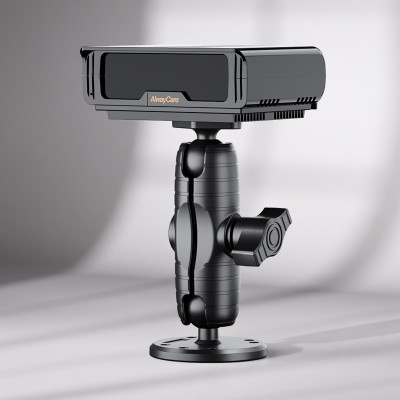
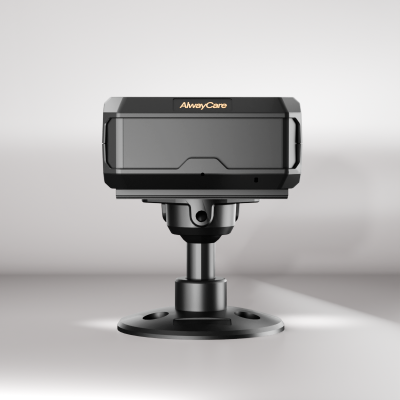
- Rules can only act on alarms your devices and platform report. Driver monitoring and ADAS devices raise the fatigue, phone and collision alarms.
- Too many rules on the same alarm can remind staff several times. Review the set from time to time.
- AI false alarm analysis currently covers physiological fatigue only, and needs an algorithm service set up.
- Shielding is a decision about what to ignore. Record who decided and why.
- The alarm center list belongs to the logged-in account and clears on refresh. Use the reports to look back.
Questions fleets ask about alarm management
What is an alarm linkage rule?
It runs actions when selected alarm types fire, such as sending a voice message to the driver, repeating a reminder, taking photos or video, sending mail or processing the alarm automatically.
How do I stop a noisy alarm from distracting staff?
Use alarm shielding for alarm types you have decided to ignore, or a frequent-alarm rule to turn repeated events into one platform alarm. Shielded alarms stay in the reports.
Can alarms be handled automatically?
Yes. In an alarm linkage rule, set automatic processing to yes and choose a processing account.
What happens if two people handle the same alarm?
Their status is shared on screen. The platform keeps the last result if the alarm repeat processing option is ticked, and the first result if it is not.
Does deleting a rule delete its alarms?
No. A deleted rule stops working, but the alarms it generated stay.
Which devices produce the alarms?
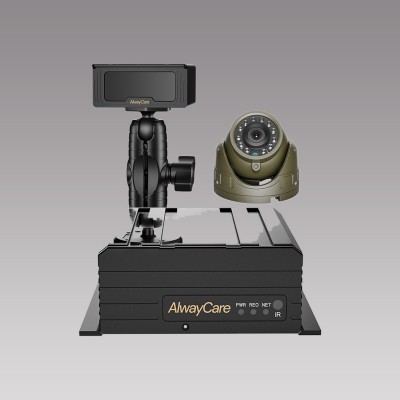
Devices connected to the platform report alarms. Driver monitoring and ADAS devices add fatigue, phone, collision and lane alarms. See the fleet management solution for platform and device options.
Summary
- Rules decide what fires and for which vehicles. The alarm center is where people handle it.
- Linkage, processing reminder, frequent, secondary, shielding and AI false alarm rules cover most needs.
- Start with a small set of alarms and a pilot group, then adjust.
- Handle, review and record. A shielded alarm is hidden, not deleted.
Read the source documentation at docs.alwaycare.com, or send an inquiry for a platform demonstration.
For fleet management, tracking and video platform options in one place, see the fleet management solution.