Track and Video Playback for Fleets: How to Review a Trip in CMSV6
Fleet Video Platform Guide
History playback answers two questions after a trip: where did the vehicle go, and what did its cameras record? In AlwayCare CMSV6 the first is track playback and the second is video playback. They sit in the same Replay area, and they work best together. This guide shows what each tool does and a simple order for reviewing an incident.
The playback tools
| Tool | What it shows | Good for |
|---|---|---|
| Track playback | The route of one vehicle on the map, with playback speed control and a reverse option | Checking a route, stops and speed |
| Safety track | The GPS points of active safety alarms joined into a track, with alarm time, speed, video and pictures | Reviewing alarm events in order |
| Multi-vehicle track | Tracks of up to 16 vehicles on one screen | Comparing vehicles on the same day |
| Video playback | Recorded video, audio and pictures from the device, a storage server or a download server | Seeing what happened at a time and place |
| AI trajectory analysis | A summary of a searched trip with driving, alarm and risk sections | A first look before a detailed review |
Track playback
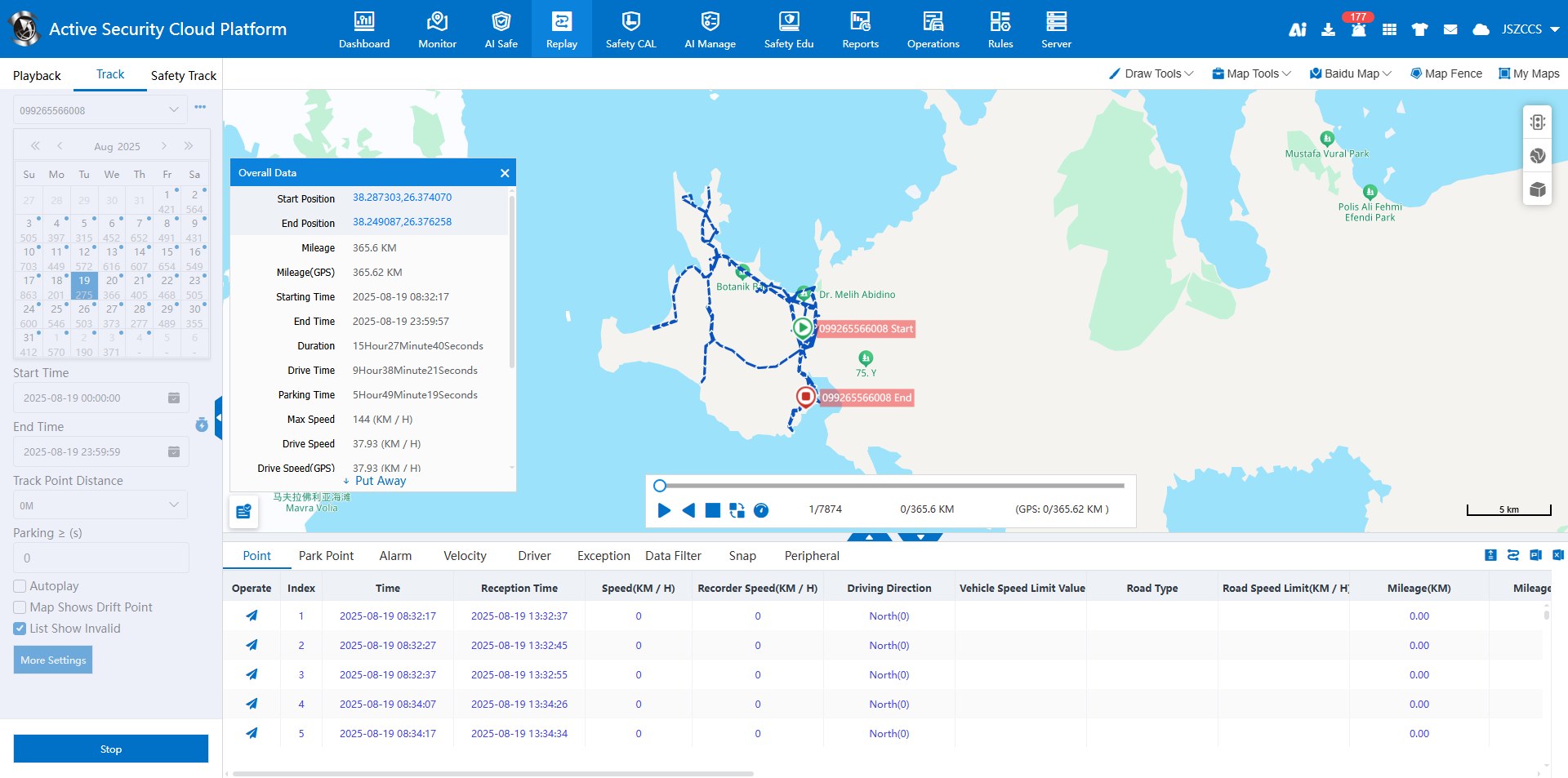
Choose a vehicle and a date range. Multi-day queries are supported. After the search the route appears as a blue arrow line, and the vehicle icon moves along it as you play. Playback can run faster, slower or in reverse.
- Overall data gives the start and end position, mileage, start and end time, duration, driving time, parking time and speeds. Mileage can be shown as device mileage or as GPS mileage.
- Lists below the map cover track points, parking points, alarms, speed, driver check-in, exceptions, data filter, server pictures and peripheral data.
- Export the track list to Excel or PDF. The file goes to the download center.
- Add a track line to electronic fence or line-offset rules: set the start and end track points, then save the line. Saved lines appear under My Maps.
See Vehicle track playback and adding a track line as an electronic fence.
Safety track
The safety track joins the GPS points of the active safety alarms in the time range you pick. The list on the right shows each alarm with its time and speed. If an alarm has a video or pictures, they can be shown from the list. The events can be exported to Excel. See Playback Active Safety Alarm Event Track.
Compare vehicles in multi-vehicle track
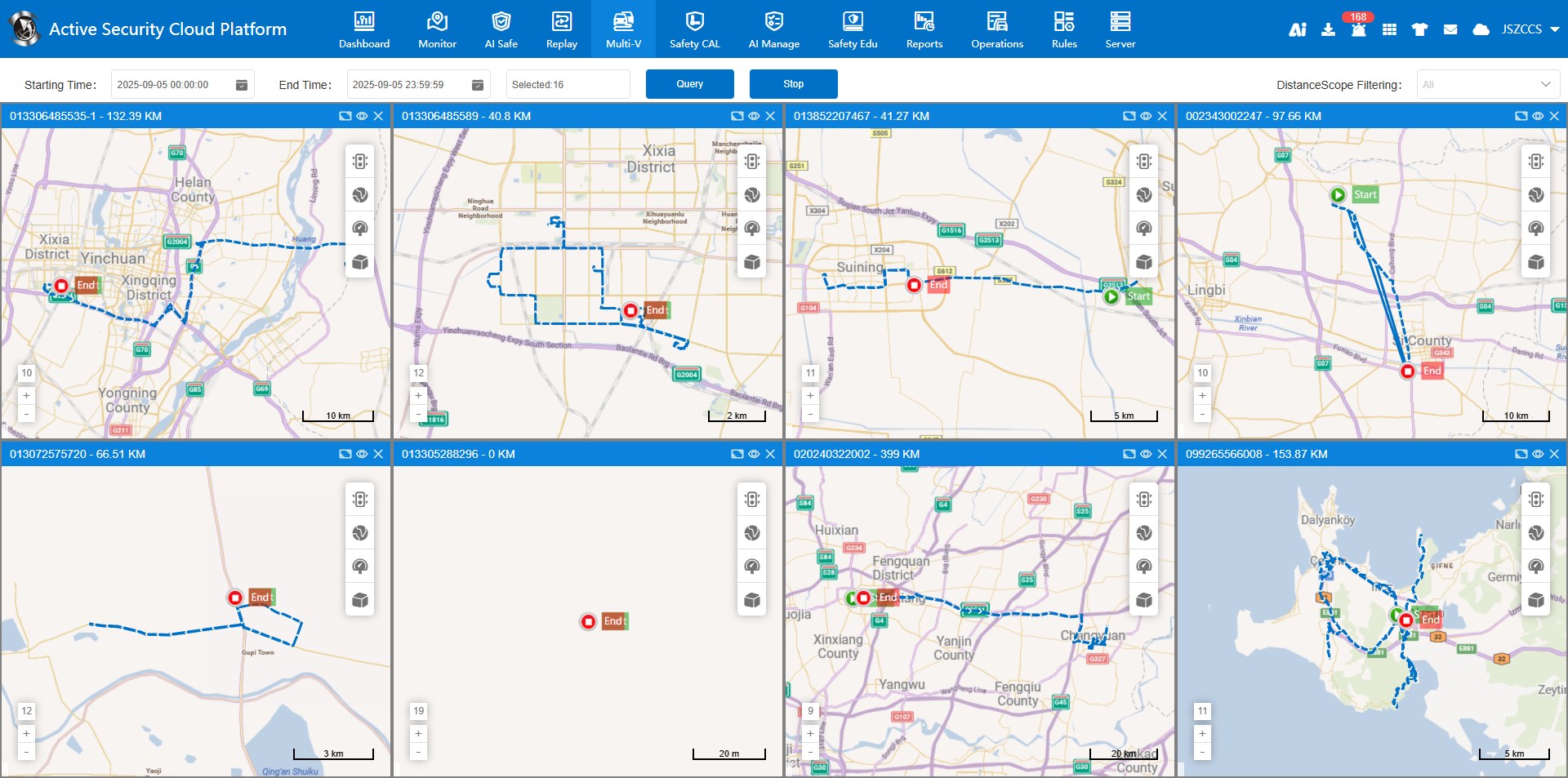
- The search period is at most 7 days.
- Up to 16 windows are shown. If you pick more vehicles, the first 16 are shown.
- Each window shows the track, the start and end points and the mileage for the period. Open a window to get the full track playback page.
- After the search, a filter by mileage range appears, such as 0–10, 10–50, 50–100 and up to more than 1000 km, with the number of vehicles in each range.
See Simultaneous playback of multiple vehicle tracks.
Video playback: choose the file location
| File location | Vehicle must be online? | What you find there |
|---|---|---|
| Terminal device | Yes. The platform sends a query to the device | Audio and video stored on the device. Devices on the private protocol can also list pictures and logs |
| Storage server | No | Video and pictures from timed recording and snapshots, and active safety alarm video and pictures |
| Download server | No | Files collected by a WiFi download server |
You can search by vehicle or by company. A company search only offers the storage server and the download server. On the timeline, ordinary video is blue and alarm video is red. Playback supports frame advance for detail and fast playback up to 16 times for browsing. See Video Playback Introduction and Video online playback.
Multi-channel playback shows several channels at once, but the channels may not be in step because of buffering, and the control bar moves them together. Support depends on the device protocol.
Download video
| Device type | How it works |
|---|---|
| 1078-protocol devices | Create an FTP upload task from the file list. The device uploads to the FTP server, and you download from there. Tasks can be paused, resumed or cancelled |
| Private-protocol devices | Create a segmented download task. When the status shows Downloaded, the file is on the server and can be downloaded to your computer |
Make sure the FTP server is reachable and has enough ports. Some devices offer a direct download button, but only when the device records in separate files. See FTP upload and segmented download.
AI trajectory analysis
After you search a track, the AI trajectory analysis button opens a summary. It lists driving data such as total mileage, driving and parking time, parking count and maximum and average speed. It also covers common alarms, active safety alarms, risk conditions and driving behavior, with charts, and the result can be exported. Treat it as a first look and check the underlying events before you act. See AI trajectory analysis.
A simple order for reviewing an incident
- Open track playback for the vehicle and day. Find the time and place from the route, stops and speed.
- Check the alarm list for events near that time.
- Open video playback at that time. Use the storage server first if the vehicle is offline or if the alarm video is stored there.
- Use frame advance on the key seconds, and note what you see.
- Export the track list or the safety events and download the video you need for the record.
- Review with the driver using the record and the context, not a single alert.
For the review and coaching steps, read Driver Event Review and Coaching: A Practical Fleet Workflow.
Limits to plan for
- Video from the terminal device needs the vehicle online. Server video must have been recorded or uploaded before.
- What you can play, download or sync depends on the device and its protocol.
- Video is only on the server for as long as your storage settings keep it. Set the retention and check the disk.
- A track shows where the vehicle was. It does not show why. Use video and the alarm list for the reason.
Questions fleets ask about playback
What is the difference between track playback and video playback?
Track playback replays where the vehicle went on a map. Video playback replays what the cameras recorded. Use the track to find the time and the video to see what happened.
Can I play back video if the vehicle is offline?
Yes, if the video is already on a storage server or a download server. Video that is still on the device needs the vehicle online.
How many vehicles can I compare at once?
Multi-vehicle track shows up to 16 vehicles for a search period of up to 7 days.
Can I export a trip?
Yes. The track list exports to Excel or PDF, safety events export to Excel, and video can be downloaded with an FTP or a segmented task, depending on the device.
What does the timeline colour mean?
On the video timeline, blue is ordinary video and red is alarm video.
Does the AI analysis replace a manual review?
No. It summarizes a trip so you know where to look. Check the events and the video before you decide anything.
Summary
- Use track playback to find the time and place, then video playback to see the event.
- Video can come from the device, a storage server or a download server. Only the device needs the vehicle online.
- Compare up to 16 vehicles in multi-vehicle track, and export lists and video for the record.
- Set retention for stored video and review with the driver using the full record.
For the live side, read our guide to live video monitoring in CMSV6. To discuss devices and platform options, send an inquiry.
For fleet management, tracking and video platform options in one place, see the fleet management solution.