Live Video Monitoring for Fleets: Preview, Intercom and Recording in CMSV6
Fleet Video Platform Guide
Live video monitoring lets a fleet manager open the camera views of vehicles that are online, listen to the cab and talk to the driver from the platform. In AlwayCare CMSV6 it sits on the real-time monitoring screen next to the map. This guide covers how to open the video, which settings change the picture, how video polling and the voice functions work and how to keep a copy of the video.
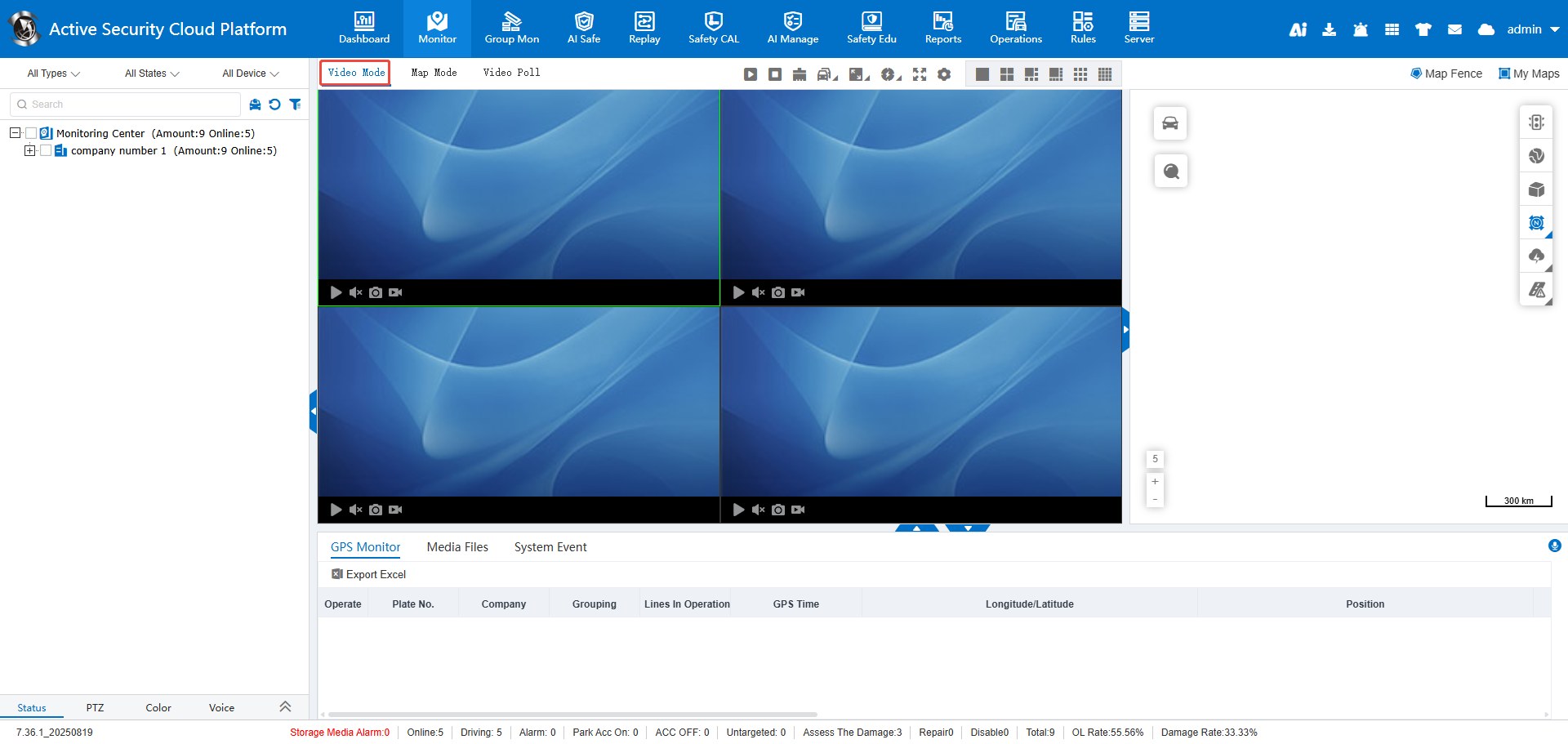
What you can do on the monitoring screen
| Function | What it does | Where to start |
|---|---|---|
| Live preview | Shows the camera channels of a vehicle in preview windows | Double-click a vehicle, or right-click it and choose Preview all videos |
| Video polling | Rotates through the channels of chosen vehicles in a few windows | The Video Poll tab |
| Two-way intercom | You and the driver can both speak | Right-click the vehicle, the Voice menu or the map bubble |
| Monitoring | You can hear the cab. The device cannot hear you | Right-click the vehicle or the Voice menu |
| Broadcast | You speak to several terminals at once | Right-click the vehicle or the Voice menu |
| Save live video | Keeps a copy of what you watch on a storage server | Storage server setting |
Live video needs the vehicle to be online and the device to support the function. Audio functions also need an audio format the device can decode.
Preview settings that change the picture
- Number of windows and screen ratio. Both can be set to suit your screen.
- Real-time mode. Good real-time performance plays video as soon as it arrives, and playback may stutter. General real-time performance holds a short buffer first, so playback is smoother. See Real-Time Video Delay Description.
- Preview mode. Multi-vehicle mode keeps several vehicles open at once. Single-vehicle mode closes the previous vehicle when you open another.
- Stop all and clear all. Stop all videos keeps the plate and channel in each window. Clear all videos also removes them.
- Default stream. The preview asks for the sub-stream by default. It can be set to the main stream in the video parameters. See Switch the default video request stream type.
- More windows. The web page shows up to 16 windows by default. An administrator can turn on the extra-window option under the general function configuration, then choose 16, 25, 36 or 64 windows. See Set more video channels.
- Settings menu. It also sets the automatic close time for intercom, monitoring and video, and can remind you when the device ACC is off.
Read the full steps in View vehicle live video.
Video polling
Video polling is for control rooms that watch more vehicles than there are windows. You tick the vehicles, choose the channels and the platform switches the picture at a set interval.
| Setting | What it does |
|---|---|
| Polling duration | How long each channel stays on screen |
| Automatic close when idle | Ends polling if nobody uses the computer for the time you set |
| Loop playback | Repeats the polling. If unticked, it runs once |
| ACC on only | Polls only vehicles with ACC on. If unticked, it polls vehicles in any state |
Talk to the driver
- Two-way intercom lets both sides talk. Check the audio format of the device under online equipment first. Then edit the device and set the audio format it can decode. The platform sends audio in that format.
- Monitoring is one-way. You hear the cab and the driver does not hear you.
- Broadcast sends your voice to several terminals at once. Tick the vehicles and confirm.
- The intercom channel defaults to logical channel 1, which is CH1. If the device uses another channel for intercom, change the intercom channel in the device information.
See two-way intercom, monitoring and broadcast.
Agree a policy for audio before you switch it on. Say who can listen, when and for what purpose, and tell drivers. Rules on recording sound in a vehicle differ by country.
Keep a copy of live video
| Method | How it works | Plan for |
|---|---|---|
| Timed recording rule | A rule makes devices upload video to the storage server at set times. The device must be linked to the storage server first | The device must preview normally, and the storage server must be running |
| Save live preview video | The storage server is set to store real-time video while you watch. Restart the streaming server after saving | It uses a lot of disk space |
Find the saved files later under video playback, with the file location set to the storage server. See upload device video in real time and save live preview video. Our guide to video telematics for remote fleet oversight explains the playback side.
A simple routine for a control room
- Set the window count and real-time mode to match the screen and the network.
- Use the map and the alarm list to pick which vehicles need a look. Do not try to watch every vehicle.
- Use video polling for routine checks and a fixed window for a vehicle you follow.
- Use the intercom only when you need to reach the driver, and log the reason.
- Keep recording rules for the vehicles whose video you may need later, and check the disk space on the storage server.
Limits to plan for
- An offline vehicle cannot stream live video.
- Picture quality and delay depend on the network, the stream type and the device. Test on your routes.
- Intercom needs an audio format the device supports. Ask the device supplier if the audio type is blank.
- Saving live video fills storage quickly. Set a retention plan and monitor the disk.
Questions fleets ask about live video monitoring
How do I open live video for a vehicle in CMSV6?
Double-click the vehicle in the monitoring tree, or right-click it and choose Preview all videos.
How many video windows can I show?
The web page shows up to 16 by default. An administrator can turn on an option to show 25, 36 or 64.
What is the difference between intercom and monitoring?
Intercom is two-way. Monitoring is one-way: you hear the cab, and the device cannot hear you.
Why is the picture stuttering or soft?
The real-time mode trades delay against smoothness. Good real-time performance plays at once and may stutter. General real-time performance buffers a little and plays more smoothly. The stream type and the network also matter.
Can I save what I watch live?
Yes. Turn on live video storage on the storage server, or use a timed recording rule. Both use disk space, so plan retention.
Does the vehicle need to be online?
Yes for live video and the voice functions. Saved video on the storage server can be played back without the vehicle online.
Summary
- Open live video from the vehicle tree, and tune the real-time mode, stream type and window count.
- Use video polling when there are more vehicles than windows.
- Intercom is two-way, monitoring is one-way and broadcast reaches many terminals.
- Keep a copy on a storage server with a rule, and watch the disk space.
For the matching playback tools, read our guide to history playback in CMSV6. To discuss devices and platform options, send an inquiry.
For fleet management, tracking and video platform options in one place, see the fleet management solution.