Driver Distraction Video: How to Review Events Fairly
Driver Monitoring Guide
A distraction video shows that something happened. It does not show why. A fair review looks at the full event, the road and the driver’s account before anyone is scored or coached. This guide gives a simple workflow for reviewing distraction events and the mistakes to avoid.

Why fair review matters
Drivers accept monitoring when they see that reviews are consistent and open to correction. A wrong call, such as treating a mirror check as distraction, damages trust faster than a missed event. The review process matters as much as the alert settings.
What the video can and cannot show
| The video can show | The video cannot show |
|---|---|
| Whether a phone was in hand or the eyes were off the road | Why it happened, for example a dispatch call or a warning light |
| How long the behavior lasted | Whether the driver was in a safe moment to look away |
| The road and traffic around the vehicle | What happened outside the camera’s view |
| Speed and location when position data is linked | The driver’s intention |
A fair review workflow
- Receive the event and note the time, vehicle and driver.
- Watch the clip from before the alert to after it, not only the alert moment.
- Check the road view: was there a reason to look away, such as a hazard or a mirror check?
- Check the in-cab view: what was actually in the driver’s hand or in view?
- Classify the event with fixed categories, for example confirmed, unclear or false alert.
- Record the decision and the reason in a short note.
- Give the driver the clip and a chance to respond before any coaching or action.
For a full coaching workflow and a record template, read Driver Event Review and Coaching: A Practical Fleet Workflow and Record Template.
Common review mistakes
- Judging from a single frame or a few seconds without context.
- Ignoring the road view and the reason for the glance.
- Reviewing different drivers by different rules.
- Scoring drivers on false alerts and never fixing the settings.
- Giving no way for the driver to explain or appeal.
Recording and access rules
- Decide who can view event video and who can export it.
- Set how long clips are kept and delete them on schedule.
- Keep a record of who reviewed each event.
- Check local rules on employee monitoring and tell drivers what is recorded and why.
For how to introduce in-cab cameras to drivers, read Driver Monitoring and Privacy. For the types and causes of distraction, read Driver Distraction in Commercial Fleets. For viewing trips and video on a platform, read Track and Video Playback for Fleets: How to Review a Trip in CMSV6.
Questions about reviewing distraction video
How often should events be reviewed?
Often enough that a driver still remembers the event. Many fleets review on a weekly schedule and handle serious events the same day.
Can drivers see their own event video?
Many fleets let drivers view the clip when it is discussed. Check your policy and local rules.
What should we do with false alerts?
Mark them, fix the cause such as mounting or sensitivity and do not count them against the driver.
How long should we keep the video?
Decide a fixed period in your policy and check local rules. Delete on schedule.
Do we have to tell drivers about the camera?
Tell drivers what is recorded and why. Check local employment and privacy rules for the notice you need.
Key points
- Video shows what happened, not why.
- Watch the whole event and the road view before you decide.
- Use fixed categories and keep a short record of each decision.
- Let the driver respond before coaching or action.
- Control who can view, export and keep the video.
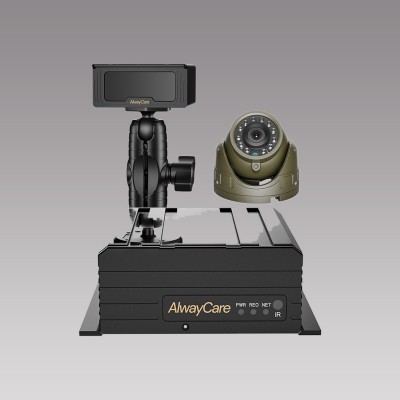
For example layouts, equipment packages and the full DMS range in one place, see the driver monitoring solution for fatigue and distraction alerts.