Risk Road Section Management and Warning Rules in CMSV6
Fleet Safety Platform Guide
A risk road section is a stretch of road that a fleet marks as needing extra care, such as a long downhill, a sharp bend or an accident-prone spot. In AlwayCare CMSV6 you draw the section on a map, set a risk level and a speed limit, and the platform can raise alarms or send a voice warning when a vehicle passes through. This guide covers the setup and the difference between an alarm and a warning.
Alarm or warning: two separate functions
| Risk road section management | Risk section warning rule | |
|---|---|---|
| Where | Operations management | Alarm rule maintenance |
| What it does | Stores the sections, shows them on the map and raises alarms when a vehicle passes through or speeds in one | Sends a warning to the vehicle when it passes through a matching section |
| Shown as an alarm | Yes | No. It is not shown or searchable as an alarm |
| Needs the other | Needs sections added first | Works on the sections you have added |
If you only want the driver to hear a reminder, use a warning rule. If you also want a record you can search and count, keep the section alarm on. Many fleets use both.
Add a risk road section
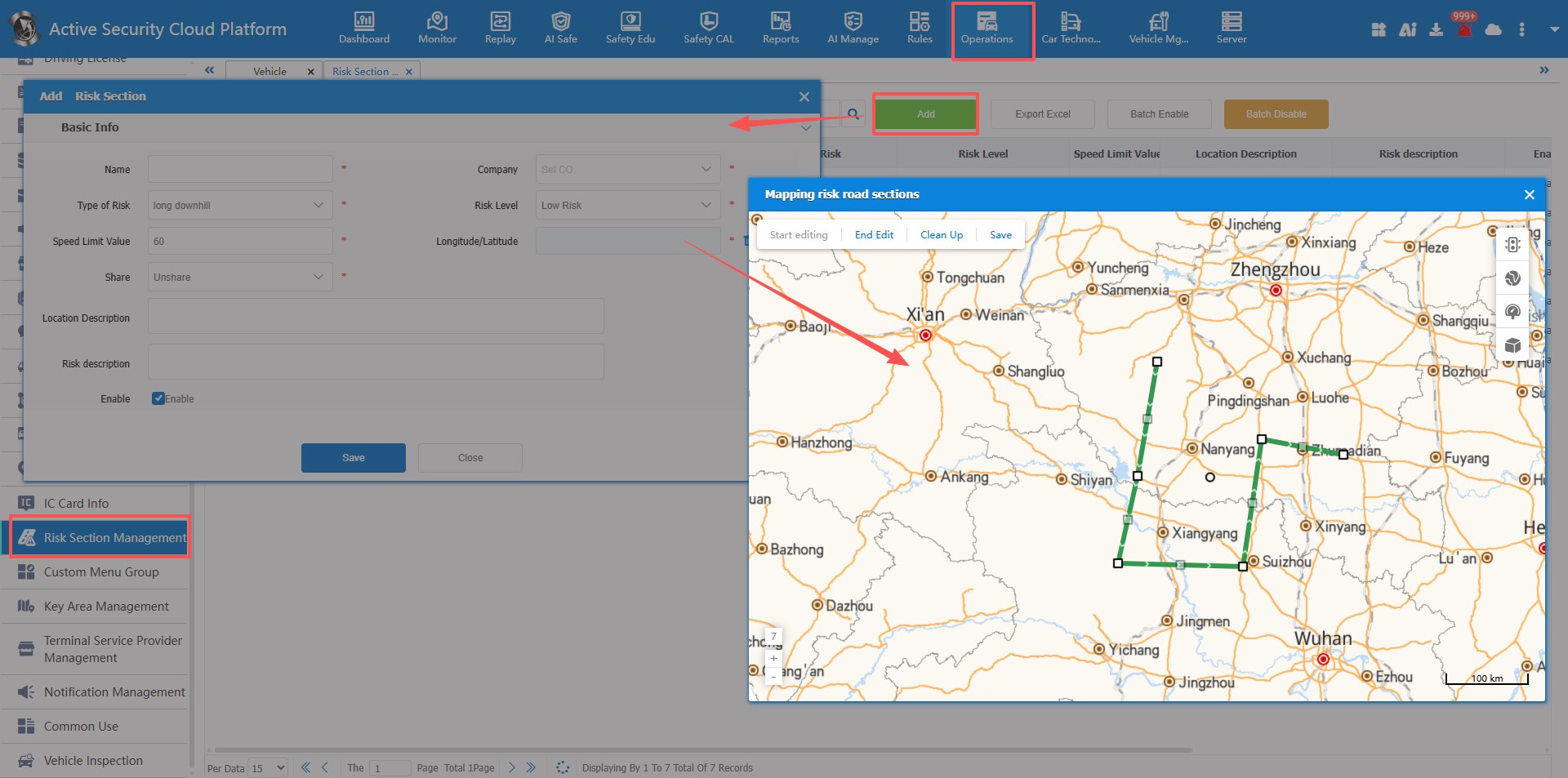
There are two ways. Draw the section by hand on the map, or open a vehicle track in track playback, set the start and end points of the line and add it as a section.
| Field | Required | Notes |
|---|---|---|
| Name | Yes | Name of the section |
| Company | Yes | The company the section belongs to |
| Risk type | Yes | Long downhill, sharp bend or accident-prone |
| Risk level | Yes | Low, medium or high |
| Speed limit | Yes | Numbers only. The default is 60 |
| Longitude and latitude | Yes | Draw the section on the electronic map |
| Share | Yes | Not shared, group shared or global shared |
| Location description | No | The exact position and the surroundings |
| Risk description | No | What the safety risk is on this section |
| Enable | No | Ticked by default. Untick to switch the alerts off |
The speed limit is the value you enter. Check it against the posted limit and your own rules for the vehicle type before you save.
Manage the list
- Show sections on the live map with the risk section button on the map toolbar, and choose the display area.
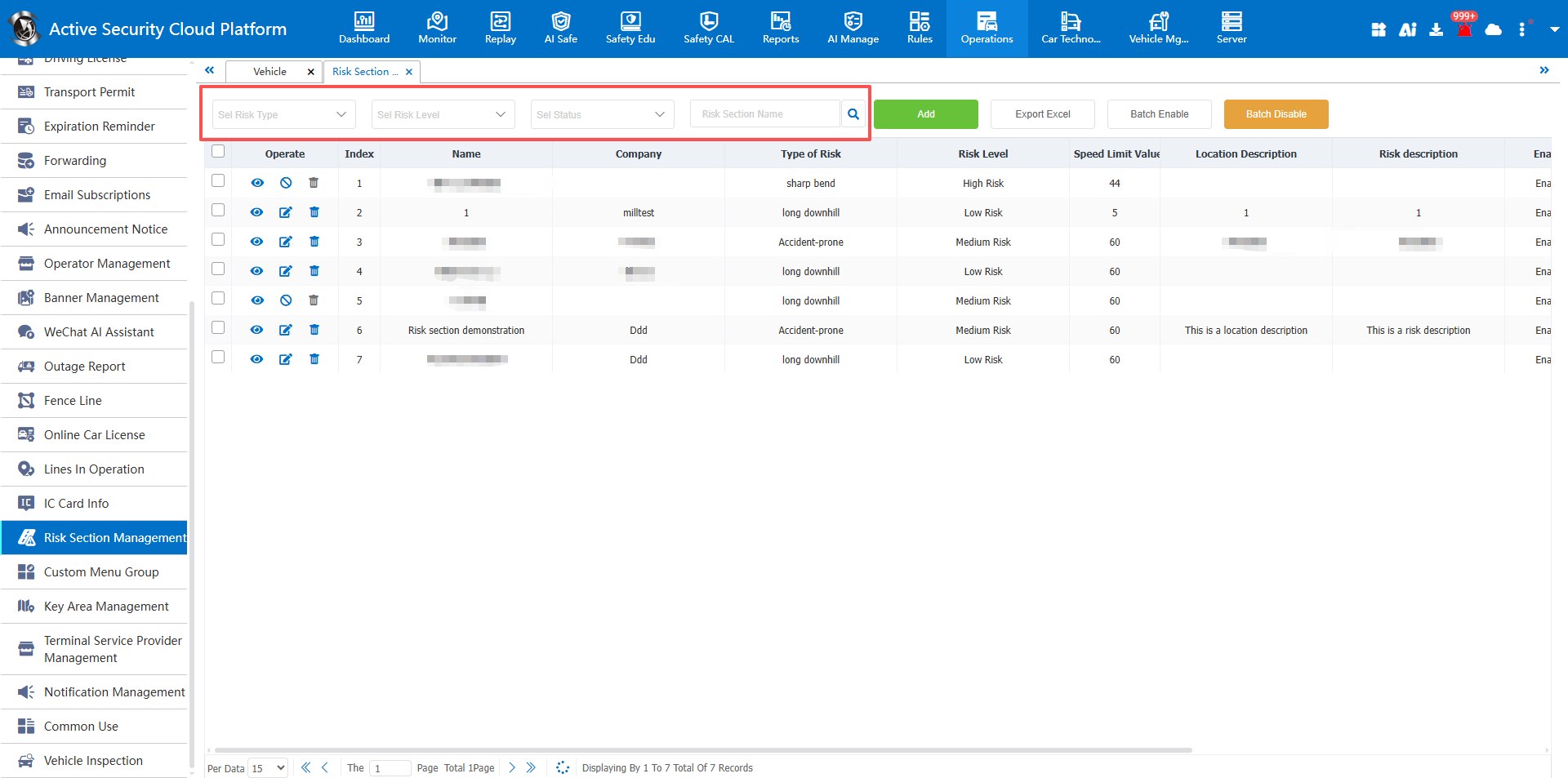
- Select several sections and enable or disable them in one step. A disabled section is not drawn on the map and raises no alarms.
- Filter by risk type, risk level or enabled status, or search by name.
- Export the list to Excel for records or review.
Set up a warning rule
| Setting | Options |
|---|---|
| Rule name | Your own name |
| Risk section type | Long downhill, sharp bend, accident-prone. All selected by default |
| Risk level | High, medium, low. All selected by default |
| Time range | The period when the rule applies |
| Warning content | The message sent to the device |
| Delivery method | Emergency, display screen, TTS reading or advertising screen. All selected by default |
Narrow the type and level when you create a rule. A rule that fires on every section may teach drivers to ignore it. See Risk Section Warning Rules.
How sections feed the risk score
Route risk carries 20% of the live risk value in CMSV6. Passing through a risk road section adds 0.25 points per event, and speeding inside one adds 1 point. The driver and vehicle profile reports also count speeding on risk road sections. Sections you do not add cannot contribute to these numbers. Our guide to the AI risk profile explains the full score.
Choose which sections to add
- Start from your own history: list the places where past alarms, near misses or incidents repeat.
- Add a small set first, such as long downhills and sharp bends on your busiest routes.
- Set the risk level by how much extra care you want, and set the speed limit for the vehicle type.
- Run the warning for a few weeks and ask drivers whether the message is clear and not repeated too often.
- Review the list on a schedule. Disable sections that no longer apply, and export the list for the record.
Limits to plan for
- A section is only as exact as the line you draw. Check it on the map before you save.
- A warning is not an alarm. It will not appear in alarm queries.
- The platform can only warn about sections you have added.
- A voice or screen warning helps the driver. It does not slow the vehicle.
Questions fleets ask about risk road sections
What is a risk road section?
It is a stretch of road a fleet marks for extra care, for example a long downhill, a sharp bend or a spot with frequent accidents.
What is the difference between a section alarm and a warning rule?
A section alarm is recorded and can be searched. A warning rule only sends a message to the vehicle when it passes through a matching section and is not shown as an alarm.
Can I add a section from a vehicle track?
Yes. Find the track in track playback, set the start and end of the line and add it as a risk road section.
What happens when I disable a section?
It is no longer drawn on the map and raises no alarms for that section.
Can I export the list?
Yes. The list can be exported to an Excel file.
Does it affect the driver risk score?
Yes. Passing a section and speeding in one count toward the route part of the live risk value, and the profile reports show speeding on risk road sections.
Summary
- Add sections by drawing them or from a vehicle track, with a type, a level and a speed limit.
- Use alarms when you need a record, and warning rules when you need a voice reminder.
- Start small, review with drivers and keep the list current.
- Sections also feed the route part of the risk score.
Read the source documents Risk Section Management and Risk Section Warning Rules, or send an inquiry for a platform demonstration.
For fleet management, tracking and video platform options in one place, see the fleet management solution.