Fleet Reports in CMSV6: Find, Export and Trust Your Numbers
Fleet Platform Guide
A fleet report is only useful when people can find it quickly and trust the number on it. AlwayCare CMSV6 ships with about 500 reports, and most fleets use only a handful. This guide covers how to find and save the ones you need, how an administrator trims the list, how to fix numbers that look wrong, how the alarm disposal rate is calculated and how to export a report.
Find and save the reports you use
- Open the Reports area, and type a report name or keyword in the search box. The match is highlighted in blue, and a click opens the report.
- Hover over a report name and click the favorite icon to save it. Saved reports appear on the Collection page, and a second click removes them.
- On a long alarm list, use key alarm queries and pick only the alarm types you need. The platform notes that this keeps the report fast.
See How to find statistical reports and How to collect statistical reports.
Trim the list for your team
An administrator can switch reports off so that staff see only the ones that matter. Go to the report configuration under server management, tick the reports to keep and save. The change applies to all users, so agree the list before you save. See How to open or block a report.
Other administrator settings shape what a report counts:
| Setting | What it controls | Good to know |
|---|---|---|
| Key alarm custom configuration | Which alarm types can be searched in the Key Alarm Query report | Tick to allow a type, untick to remove it |
| Custom alarm statistics | Which alarm types are counted in the Alarm Handling Statistics report | A change does not rewrite the disposal rate already calculated for past days |
| Track overspeed report | Turns on the track overspeed report under driving data reports | Tick it under report configuration |
See key alarm types, alarm statistics types and Enable Track Overspeed Report.
When a number looks wrong: recalculate
Two common causes are mileage that changed after a device sent data late, and an alarm disposal rate that does not match because alarms were handled on a later day. An administrator can ask the platform to count the data again.
- Log in as the administrator and open the daily report parameters under the application server parameters.
- Enter the number of days, the start time, and whether to count by vehicle or by user, then save. For example, to recount 1 to 5 April 2025, enter 5 days and a start time of 1 April 2025.
- Refresh the page now and then. The number of days falls as the recount runs. When all the parameters are empty, the recount is finished.
Time depends on the number of vehicles and days. More vehicles and more days take longer, so recount a narrow range first. See How to recalculate report data.
Mileage from GPS
If the mileage a device reports has errors, the report can use GPS points instead. Tick the location analysis mileage option in the general function configuration, then recount mileage in the daily report parameters and wait until the parameters clear. See Mileage calculated by GPS. When you compare mileage between systems, check which method each one uses.
How the alarm disposal rate is calculated
The Alarm Handling Statistics report uses the alarm types you ticked in the custom alarm statistics. Within the query period it works out:
| Figure | How it is worked out |
|---|---|
| Vehicles online in the network | Latest number of the company's vehicles that have reported GPS data |
| Alarms | Alarms generated each day for the ticked alarm types, added up over the period |
| Alarm vehicles | Vehicles that produced an alarm of the ticked types in the period |
| Vehicle alarm rate | Alarm vehicles ÷ vehicles online in the network × 100 |
| Alarms handled | Alarms of the ticked types that were handled on the day they were generated, added up |
| Alarm disposal rate | Alarms handled ÷ alarms × 100 |
- If the ticked alarm types were changed inside the query period, the report can differ from the active safety alarm list.
- If a vehicle was deleted inside the period, the days before the deletion are still counted.
- Alarms handled on a later day do not count toward the earlier day. Recount if you need a different view.
See Statistical Principle of the Alarm Disposal Statistical Report. For the alarm rules and handling behind these numbers, read our guide to alarm rules and alarm handling in CMSV6.
Export a report
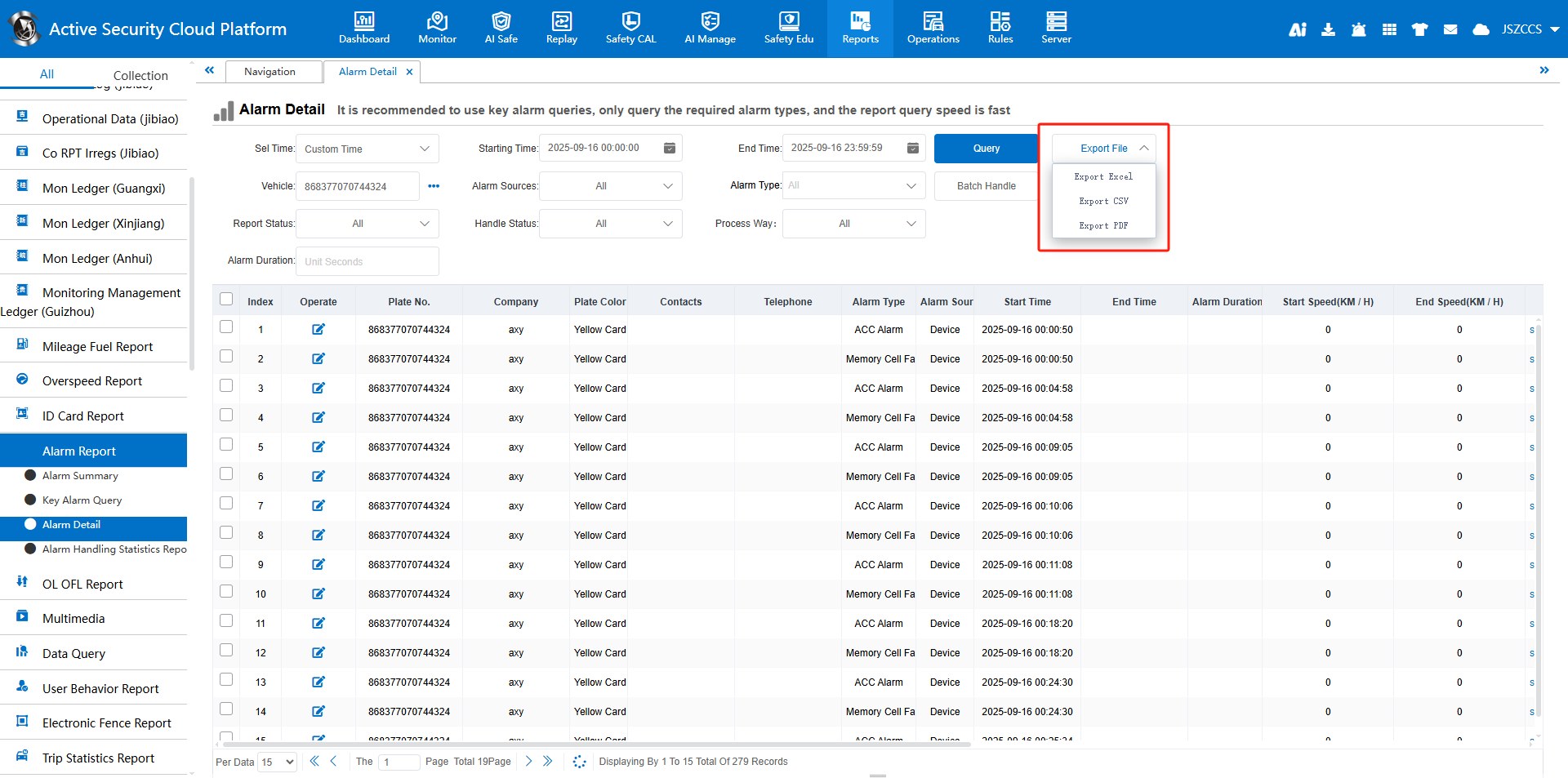
Run the query first, then use the Export File button and choose Excel, CSV or PDF. The file is saved in the download center on the server and also downloaded to the browser folder. You can see the status of each export in the download center and download the same file again without exporting twice. See How to export statistical reports.
A simple reporting routine
- Pick the five to ten reports your team uses and save them as favorites.
- Ask your administrator to block the rest, after you check nobody needs them.
- Tick the alarm types that matter in the custom alarm statistics, and write down the list so the rate means the same thing each month.
- Review mileage and alarm figures on a set day each week or month, from the same reports.
- If a figure looks wrong, check the settings above before you question the vehicle. Recount a narrow range if needed.
- Export the figures you share, and note the query dates on the file.
Limits to plan for
- Reports count what devices and the platform recorded. Missing data or late sends change totals.
- Report settings are global. Changes affect every user.
- Changing which alarm types are counted does not rewrite old disposal rates.
- A recount can take a long time on a large fleet. Do it outside busy hours.
Questions fleets ask about platform reports
How many reports does CMSV6 have?
The platform has about 500 reports. Most customers use only some of them, so an administrator can block the others.
How do I find a report quickly?
Use the search box on the Reports page, and save the ones you use as favorites.
Why does my mileage differ between reports or systems?
The platform can use the mileage a device reports or GPS-calculated mileage, and late-sent data can change totals. Check the option setting and recount if needed.
How is the alarm disposal rate calculated?
It is alarms handled divided by alarms, times 100, for the alarm types ticked in the custom alarm statistics, counted per day and added up over the period.
Can I export a report to Excel or PDF?
Yes. After you query the report, choose Excel, CSV or PDF under Export File. Files appear in the download center.
Will a settings change alter old figures?
Changing the counted alarm types does not rewrite past disposal rates. A recount refreshes the data for the days you choose.
Summary
- Search and favorite the reports you use, and have an administrator block the rest.
- Decide which alarm types count, and keep the list stable so figures compare over time.
- Recount a narrow range when a number looks wrong, and use GPS mileage when device mileage is unreliable.
- Export from the report, and keep the query dates with the file.
Read the source documentation at docs.alwaycare.com, or send an inquiry for a platform demonstration.
For fleet management, tracking and video platform options in one place, see the fleet management solution.